Brevo template conditional content: if, elif and else that work
How to show different content per contact in a Brevo template with if, elif and else, which operators exist, and how to preview each version before sending.
Quick answer
In a Brevo template you show content to some contacts and not others with an if statement: {% if contact.ATTRIBUTE == "value" %}...{% endif %}. Add {% elif %} for more cases and {% else %} for everyone else. The attribute name goes exactly as it appears on the Contact attributes page, usually in capitals. Before sending, open Preview & test, pick a contact for each case and check what they see.
What you'll find
- How to write a condition in a Brevo template
- Which operators Brevo accepts
- Content visibility or typed if statements
- Why a branch never shows
- Showing a different language to each contact
- How to test every version before sending
- How to do it with Remite
How do you write a condition in a Brevo template?
Brevo templates use the Brevo Template Language. Variables go between double curly braces, like {{ contact.FIRSTNAME }}. Logic goes between a curly brace and a percent sign, like {% if ... %}.
An if statement has up to four parts:
{% if condition %}opens the block. It's required.{% elif condition %}adds another case. You can have several, or none.{% else %}catches everyone who didn't match. It's optional.{% endif %}closes the block. It's required. Forget it and the template breaks.
Here's a greeting that changes with the contact's plan:
{% if contact.PLAN == "pro" %}
  Thanks for being on Pro. Your new reports are ready.
{% elif contact.PLAN == "starter" %}
  You're on Starter. Pro adds reports and exports.
{% else %}
  Here's what's new this month.
{% endif %}
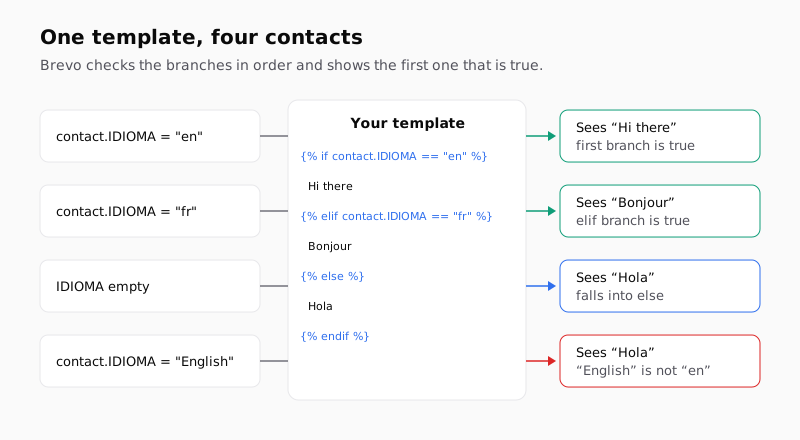
Brevo checks the branches from top to bottom. It shows the first one that is true and skips the rest. A contact with no PLAN value, or a value you didn't list, gets the else text.
The attribute goes after contact. with the exact name from Contacts → Settings → Contact attributes. If the attribute is called PLAN, contact.plan won't find it. Copy the name from that page rather than typing it from memory.
Checked against the Brevo documentation in October 2026: Show or hide content using if statements.
Which operators can you use?
Brevo documents a short list. It covers most of what a marketing email needs.
| Operator | What it checks | Example |
|---|---|---|
{% if x %} |
The value is true, or the list has items | {% if contact.ACTIVE %} |
== |
The value is equal to another | {% if contact.PLAN == "pro" %} |
> and < |
A number is bigger or smaller | {% if contact.POINTS > 100 %} |
in |
Text contains a word, or a list contains an item | {% if "vip" in contact.TAGS %} |
not |
The value is false or empty | {% if not contact.SUBSCRIBED_SMS %} |
and |
Every condition is true | {% if contact.LANG == "FR" and contact.COUNTRY == "Canada" %} |
or |
At least one condition is true | {% if contact.COUNTRY == "United States" or contact.COUNTRY == "Canada" %} |
A few details make the difference:
- Text goes in quotes.
contact.PLAN == "pro"compares the attribute with the text "pro". Every text value in Brevo's examples is in double quotes. - Booleans go without quotes. Brevo's own example is
{% if contact.donor == true %}. - Avoid decimals. Brevo warns that an if statement on a float value may give wrong results. If you need it, pass the value as text in quotes, like
"3.14". inreads text too.{% if "express" in params.shipping_method %}is true for "express" and also for "express-24h". That's useful, and also a trap if one value contains another.
> and < appear in Brevo's own examples, for instance temperature > 10 and temperature < 55. To say "different from", the documented route is not or an else branch.
Should you use Content visibility or type the if?
Brevo gives you two ways to do the same thing. The result in the inbox is the same. What changes is where you work.
Content visibility lives in the drag-and-drop editor. You select a block or a section, scroll down the side panel to Content visibility, click Add condition and choose the attribute, the condition and the value. You can combine rules with and and or. A block with rules shows a light blue outline and a slashed eye icon. It can also show a block only on desktop or only on mobile.
Typed if statements go straight into the HTML or into a text block. They're faster when you have many branches, when you want elif, or when the condition sits in the middle of a sentence.
| Content visibility | Typed if statement | |
|---|---|---|
| Where | Side panel of the drag-and-drop editor | HTML editor or inside a text block |
| Unit | A whole block or section | Any piece, down to one word |
| Several cases | One block per case, with the opposite condition | elif in the same statement |
| Fallback for everyone else | Another block with the opposite rule | {% else %} |
| Device rules | Yes: all, desktop only or mobile only | No |
| Good for | Swapping a banner or a section | Greetings, sentences, languages, subjects |
One rule from Brevo's documentation matters here. With Content visibility, contacts who don't meet the condition, or whose data is missing, don't see the block. There's no automatic fallback. If you hide the VIP banner, add a second block with the opposite condition so nobody gets an empty gap.
Checked against the Brevo documentation in October 2026: Show or hide content in your emails (Content visibility).
Why does a branch never show?
Almost every "my condition doesn't work" comes from the data, not from the syntax. The template compares exact values. If the stored value is slightly different, the branch is false and the contact falls into else.
| What you see | Likely cause | What to do |
|---|---|---|
Everyone gets the else text |
The attribute name is wrong, like contact.plan instead of contact.PLAN |
Copy the name from Contact attributes |
| One group never matches | The stored value isn't the one you wrote, like "English" instead of "en" | Look at a real contact and use that exact value |
| Text from several branches mixes, or part of the email disappears | A {% endif %} is missing or a quote isn't closed |
Count one endif per if |
| Two branches look right but the first always wins | The first condition also matches the second case | Put the narrowest condition first |
| A number comparison is off | The value has decimals | Compare text in quotes, or round the data |
| Contacts with no value see an empty gap | You used Content visibility with no opposite block | Add a fallback block, or use else |
The second row is the most common one. A form saves "English", an import saves "EN", a sync from your store saves "en_GB". The template only knows the one value you wrote. Pick one format for each attribute and stick to it. A category attribute helps, because it only accepts values from a fixed list.
How do you show each contact their language?
Language is the most common use of conditional content. You keep one template and the text changes with an attribute like LANGUAGE or IDIOMA.
{% if contact.IDIOMA == "en" %}
  Your order is on its way.
{% elif contact.IDIOMA == "fr" %}
  Votre commande est en route.
{% else %}
  Tu pedido está en camino.
{% endif %}
Put your main language in else. Contacts with an empty language attribute then get your main language, not a blank space.
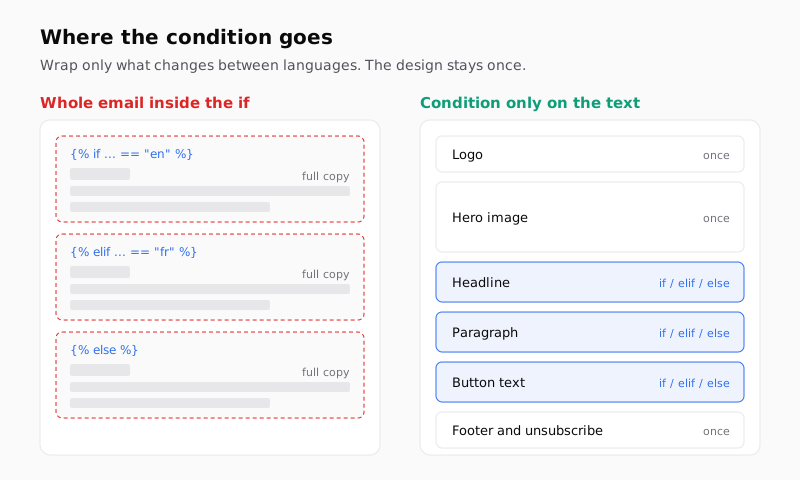
Wrap only what changes. If you put the whole email inside the if, the design is repeated once per language. The template grows fast and every design change has to be made three times. Keep the logo, the images, the layout and the footer outside. Put the condition around the headline, the paragraphs, the button text and the alt texts.
Brevo documents contact variables in the subject line, not only in the body. If you change the subject by language, check it in the preview with one contact per language. A French email under an English subject is the first thing people notice. Do the same with the preheader if your template has one.
Brevo also offers multi-language campaigns, with a preview per language. If you already use them, that's another valid route.
For the same pattern in Klaviyo, Braze, Iterable and Salesforce, see one email template for every language.
How do you test every version?
Don't send a condition you haven't seen with your own eyes. Brevo has a preview built for this.
- Click Preview & test from the campaign page, the drag-and-drop editor or the campaign list.
- Go to the Preview tab.
- In Select a contact, type the email of a contact and pick it. The design reloads with that contact's data.
- Repeat with one contact per branch: one per language, one per plan, and one with the attribute empty.
- Send a test from Send test email to see it in a real inbox.
The empty contact is the one people forget. It tells you whether your else works, or whether Content visibility leaves a gap.
| Branch | Test contact | What you should see |
|---|---|---|
if contact.IDIOMA == "en" |
Contact with IDIOMA = en |
English text |
elif contact.IDIOMA == "fr" |
Contact with IDIOMA = fr |
French text |
else |
Contact with IDIOMA empty |
Main language text |
else |
Contact with a value you didn't list | Main language text |
If you're missing contacts for a case, create them with your own addresses. Brevo's guide on previewing and testing your email explains both tabs. One note from it: on a Free plan, the links in a test email expire about 30 minutes after it arrives.
How to do it with Remite
Remite writes the language conditions for you when you export to Brevo. This is the real flow.
- Brand. Remite reads your website and saves the logo, colors, fonts and style. You pick Brevo as your platform. Remite uses
NOMBREfor the name andIDIOMAfor the language, unless you change them to the names in your account, likeFIRSTNAMEandLANGUAGE. - The brief. You describe the email: what it's for, who gets it and which languages you need.
- Before generating. Remite reviews the brief and may ask one or two quick questions before writing.
- Edit. You change things in the chat, by editing the text directly, or by selecting a piece and using Comment. Every language keeps the same design. A change to size or alignment applies to all of them.
- Export. You choose One with every language. Remite merges the versions into one HTML. The head and the design go once. Only the pieces of text that change get
{% if contact.IDIOMA == "en" %},{% elif %}and{% else %}, with your main language inelse. The subject and the preheader get the same condition. The unsubscribe link goes out as{{ unsubscribe }}. - Checking before upload. Remite checks the final HTML: the weight and Gmail clipping, the unsubscribe link in Brevo's syntax, the fields, public images and links.
- Send to Brevo. You add your key, choose the sender, and Remite creates the template in your account, or updates it if it already exists.
One limit, so you know what to expect. Remite only writes language conditions. If you also want a block for VIP contacts or for one plan, add it in Brevo with Content visibility or a typed if, as shown above. The name fallback with default is also written for you, as in the merge tags cheat sheet.
Automatic lifecycle diagnosis, which points out the flows a store is missing, is coming soon. You can read about it on the lifecycle page.
Frequently asked questions
What's the syntax for an if statement in Brevo?
{% if contact.ATTRIBUTE == "value" %}...{% endif %}. Add {% elif ... %} for more cases and {% else %} for everyone else. Every if needs its own endif.
Does Brevo support elif?
Yes. You can chain several {% elif condition %} branches between the if and the else. Brevo shows the first branch that is true.
Why do all my contacts see the else text?
The attribute name is wrong, or the stored values don't match what you wrote. Copy the name from Contact attributes and look at how a real contact stores the value.
Can I personalize the subject line too?
Yes. Brevo accepts contact variables in the subject. If you also put a condition there, check it in Preview & test with one contact per case before sending.
How do I check if an attribute is empty in Brevo?
Use {% if contact.ATTRIBUTE %} for "has a value" and {% if not contact.ATTRIBUTE %} for "is empty or false". To show a word instead of a gap, the default filter is shorter: {{ contact.FIRSTNAME|default:"there" }}.
Is Content visibility the same as an if statement?
It gives the same result from the drag-and-drop editor. It works on whole blocks, adds device rules, and hides the block from contacts with missing data unless you add an opposite block.
Can I compare numbers in a Brevo condition?
Yes, with > and <, for example {% if contact.POINTS > 100 %}. Brevo warns against decimals; pass them as text in quotes if you must.
Does Remite write Brevo conditions?
It writes the language conditions when you export with every language in one template, and sends the result to your Brevo account. Other conditions you add in Brevo.
If you'd rather not write these tags by hand for every platform, you can join the Remite waitlist.