Upload an HTML email to Salesforce Content Builder, step by step
How to upload an HTML email to Salesforce Content Builder with HTML Paste or the REST API, with subject line, preheader and AMPscript fallbacks that hold up.
Quick answer
To upload an HTML email to Salesforce Content Builder by hand, go to Content Builder, click Create, choose Email Message and then HTML Paste. Give it a name and a folder, paste your code, fill in the subject line and preheader, preview it and save. If you upload emails often, use the REST API: get a token from /v2/token and send a POST to /asset/v1/content/assets with the asset type htmlemail (id 208) and the html, subjectline and preheader views. Before you send, make sure every personalized field has a fallback with AttributeValue() and Empty(), and preview with a subscriber who has empty fields.
What you'll find
- How to upload the HTML by hand with HTML Paste
- How to upload it with the REST API
- Where the subject line, preheader and HTML go
- How to personalize without broken greetings
- The errors that show up most and how to fix them
- How to do it with Remite
How do you upload an HTML email to Content Builder by hand?
Content Builder is the content library in Salesforce Marketing Cloud Engagement. Emails, templates, blocks and images all live there. When you already have the finished HTML, the email type you want is HTML Paste. It takes your code as it is, without asking you to rebuild it in blocks.
These are the steps:
- Open Content Builder and click Create.
- Choose Email Message.
- Pick HTML Paste.
- Fill in the properties: name, description if you use them, and the folder where it will live. Click Next.
- Paste your HTML in the code editor.
- Write the subject line and the preheader.
- Preview the email, then save it.
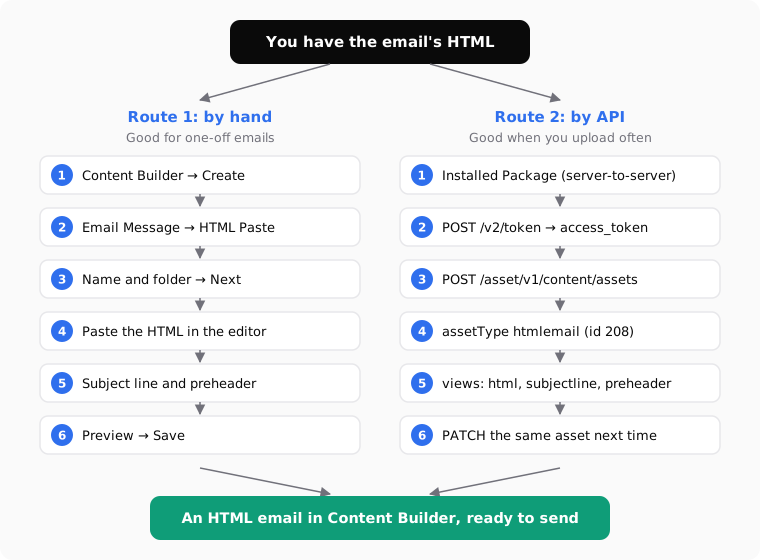
Salesforce's own training lists HTML Paste next to the other ways to create an email: from a template, text only, or from an existing email. Checked against the Salesforce documentation in October 2026: Build Emails with Content Builder on Trailhead.
A few habits make this route much less painful:
- Name it so you can find it. Content Builder has a global search. A name like
2026-10 Welcome 1 ENbeatsFinal email v3. - Choose the folder first. Moving assets later is possible, but nobody does it. Folders are how other people on your team will find the email.
- Keep the images hosted. HTML Paste takes the code, not your local files. If your
<img>tags point to your computer, they break. Upload the images to Content Builder first, or use URLs that are already public. - Paste the full document. Include the
<!DOCTYPE>,<head>and your styles. Content Builder keeps what you paste.
| Way to create the email | When it fits | What you give up |
|---|---|---|
| HTML Paste | You already have finished, tested HTML | Drag-and-drop editing of blocks |
| Template | Your team builds every email from the same layout | Freedom in the code |
| Text only | A plain message, like an internal note | Images, buttons and design |
| Existing email | A new version of something you already sent | A clean start |
How do you upload an HTML email with the Content Builder API?
If you upload emails every week, or you generate them in another tool, typing them in by hand gets old fast. The Content Builder REST API does the same job in two calls.
Step 1: create an API integration. In Marketing Cloud, go to Setup, then Apps, then Installed Packages. Create a package and add an API integration of the server-to-server type. Give it the permissions it needs to read and write content. Write down the client ID, the client secret and the authentication base URI. The base URI has your subdomain in it.
Step 2: ask for a token. Send a POST to /v2/token on your authentication host:
POST https://YOUR_SUBDOMAIN.auth.marketingcloudapis.com/v2/token
Content-Type: application/json

{
  "grant_type": "client_credentials",
  "client_id": "YOUR_CLIENT_ID",
  "client_secret": "YOUR_CLIENT_SECRET",
  "account_id": "YOUR_MID"
}
The account_id is optional. It's the MID of the business unit. Leave it out and the token works in the business unit that created the integration. The response gives you an access_token and a rest_instance_url. The token lasts 20 minutes, so reuse it for every call in that window.
Step 3: create the asset. Send the email to /asset/v1/content/assets on your REST host:
POST {rest_instance_url}/asset/v1/content/assets
Authorization: Bearer {access_token}
Content-Type: application/json

{
  "name": "2026-10 Welcome 1 EN",
  "assetType": { "name": "htmlemail", "id": 208 },
  "category": { "id": 12345 },
  "views": {
    "html": { "content": "<!DOCTYPE html><html>...</html>" },
    "subjectline": { "content": "Welcome to the shop" },
    "preheader": { "content": "Your 10% code is inside" }
  }
}
The response returns the id of the new asset. Save it. The next time you change the email, send a PATCH to /asset/v1/content/assets/{id} with the same body. That updates the email instead of creating a copy next to it.
The category.id is the folder. If you leave it out, the email lands in the default folder of the business unit.
| Asset type name | Id | What it is |
|---|---|---|
templatebasedemail |
207 | Email built from a Content Builder template |
htmlemail |
208 | Email from your own HTML (the API version of HTML Paste) |
textonlyemail |
209 | Text-only email |
htmlblock |
197 | A reusable HTML block, not a full email |
Checked against the Salesforce documentation in October 2026: access token for server-to-server integrations and the list of asset types. Salesforce's training also notes that REST requests can carry up to 4 MB, so a heavy email with inline images encoded in the HTML can hit that limit. Host the images instead.
Two practical warnings. Never put the client secret in browser code or in a shared spreadsheet. And don't ask for a new token for every call: Salesforce asks you to reuse it while it's valid, and too many token requests get throttled.
Where do the subject line and preheader go?
In an htmlemail asset, the subject line and the preheader don't go inside the HTML. Each one has its own view. That's why an email can look perfect in the preview and still arrive with an empty subject: the HTML was there, but nobody filled the subjectline view.
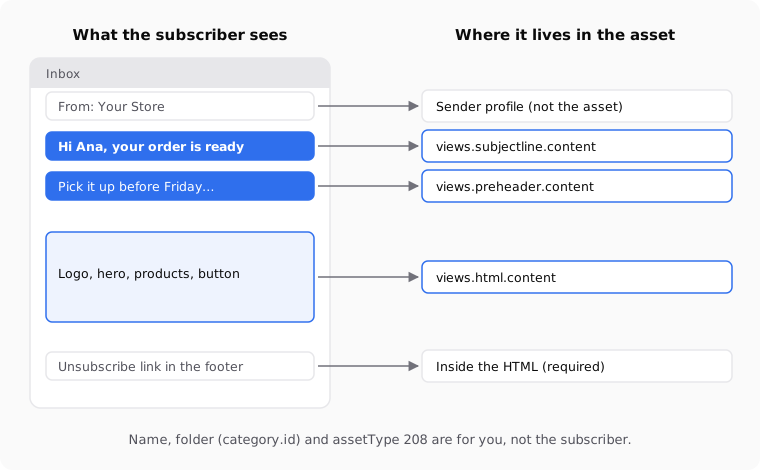
| What you want to set | In the Content Builder screen | In the API body |
|---|---|---|
| Internal name | Properties, Name | name |
| Folder | Properties, folder | category.id |
| Subject line | Subject line field | views.subjectline.content |
| Preheader | Preheader field | views.preheader.content |
| Email body | HTML Paste editor | views.html.content |
| Sender name and address | Sender profile in the send | Not part of the asset |
The preheader is the grey line many inboxes show after the subject. If you leave it empty, the inbox fills it with the first text it finds in the email. Often that's "View in browser" or the alt text of your logo. Write it on purpose. A good preheader adds something the subject didn't say.
Salesforce documents personalization strings in the subject line, the preheader and the body. So you can greet people by name in the subject too. The same fallback rules from the next section apply there.
How do you personalize the HTML without breaking it?
Marketing Cloud has two ways to drop a subscriber's data into an email.
The short one is a personalization string: the attribute name between double percent signs, like %%FirstName%%. It's quick to write. The problem is what happens when the field doesn't exist in the data you send to, or it's empty. The greeting can come out as "Hi ," with a gap.
The safer one is AMPscript with AttributeValue(). Salesforce recommends it over a direct reference because it returns null when there's no data, instead of failing. You pair it with Empty() and Iif() to choose a fallback:
Hi %%=Iif(Empty(AttributeValue("FirstName")), "there", AttributeValue("FirstName"))=%%,
A subscriber called Ana sees "Hi Ana,". A subscriber with no name sees "Hi there,".
For longer blocks, a code block reads better than one long line:
%%[
  Var @name, @greeting
  Set @name = AttributeValue("FirstName")
  Set @greeting = Iif(Empty(@name), "Hi there,", Concat("Hi ", @name, ","))
]%%
<p>%%=v(@greeting)=%%</p>
Empty() returns true when the value is null or an empty string. Checked against the Salesforce documentation in October 2026: AttributeValue(), Iif() and Empty() in the AMPscript reference.
| How you write it | When the field has a value | When the field is empty or missing |
|---|---|---|
%%FirstName%% |
Hi Ana, | Hi , (or an error if the field doesn't exist) |
%%=AttributeValue("FirstName")=%% |
Hi Ana, | Hi , |
%%=Iif(Empty(AttributeValue("FirstName")), "there", AttributeValue("FirstName"))=%% |
Hi Ana, | Hi there, |
AMPscript block with @greeting |
Hi Ana, | Hi there, |
One more detail. In Marketing Cloud, the fields live in the data extension you send to. If your data extension calls the column First_Name, then AttributeValue("FirstName") finds nothing. Check the exact column names before you paste. The cheat sheet of name and unsubscribe tags across 21 platforms has the same pattern for other tools if you work with more than one.
What goes wrong most often, and how do you fix it?
Most problems with HTML in Content Builder come from the same handful of causes. None of them is hard to fix once you know where to look.
| What you see | Likely cause | How to fix it |
|---|---|---|
| The subject arrives empty | The subjectline view or field was never filled |
Fill it in the editor, or send it in the API body |
| "Hi ," with a gap | Plain personalization string and empty field | Use AttributeValue() with Iif() and Empty() |
| Broken images | src points to local files |
Upload the images to Content Builder or use public URLs |
| A second copy of the email appears | You sent POST again instead of PATCH |
Save the asset id and update with PATCH |
| 401 error from the API | The token expired after 20 minutes | Ask for a new token and retry the call |
| The email lands in the wrong business unit | The token was issued without account_id |
Add the MID of the right business unit |
| The send is blocked for missing unsubscribe | The HTML has no unsubscribe link | Add Salesforce's unsubscribe link in the footer |
| Links without tracking parameters | UTMs were added by hand and some were missed | Add UTMs to every link before you upload |
Two of these deserve a closer look.
The unsubscribe link. Commercial emails need a working unsubscribe link, and commercial sends in Marketing Cloud expect one. If your HTML came from another platform, its unsubscribe tag won't work here. Swap it for the Salesforce one before you upload.
The tracking parameters. If you measure campaigns in Google Analytics, every link needs its UTM parameters. Doing it by hand on an email with fifteen links is where mistakes creep in. The guide to UTM parameters in email campaigns shows a naming scheme that stays consistent across sends.
Should you upload by hand or with the API?
It depends on how often you do it and who does it.
Upload by hand when the email is a one-off, when the person sending it isn't technical, or when you need to look at the result before anything else happens. HTML Paste is fine for that.
Use the API when you upload more than a few emails a month, when the HTML comes from another tool, or when the same email exists in several languages. The API removes copy-and-paste errors. It also lets you update an email in place, which matters when someone spots a typo after the email is already in a journey.
If you need several languages, you can upload one email per language or one email with all of them inside, using AMPscript conditions on a language field. The guide to multilingual email templates compares both options.
How to do it with Remite
Remite creates the email from a brief, writes the variables in AMPscript and can send the result straight to your Content Builder. This is the real flow.
- Marca. You set up your brand once. Remite reads your website for colors, logo, fonts and style. You pick Salesforce as your platform. To use the real names of your fields, open Conectar CRM and paste the header row of one of your data extensions. Salesforce fields live in each data extension, so that's where Remite reads them from.
- Brief. You describe the email: goal, audience, products, offer. Remite can read products, prices and photos from your website.
- Antes de generar. Remite reviews the brief and may ask one or two quick questions before writing.
- Edit. You change the email in the chat, by editing the text directly, or with Comentar on top of any block. In Enlaces you check every link and add the UTMs once for the whole email.
- Subject and preheader. Remite writes the subject with A/B variants and the preheader. Those go in their own fields, as Content Builder expects.
- Exportar. The personalized fields come out with
AttributeValue()and anIif()fallback where a sentence would break without the value. The footer gets Salesforce's unsubscribe link. If you have several languages, you choose Uno con todos los idiomas to get AMPscript conditions on your language field, or one email per language. - Enviar a Salesforce (beta). You paste the subdomain, client ID, client secret and, optionally, the MID. The ¿De dónde saco esto? link explains where to find them in Installed Packages. Remite creates an
htmlemailasset in Content Builder with the HTML, subject and preheader. If an HTML email with the same name already exists, Remite updates it instead of making a copy. Your keys stay in your browser.
If you prefer to upload it yourself, Copiar HTML gives you the code ready for HTML Paste, and Descargar ZIP saves it as a file.
Two limits, so you know what to expect. Remite doesn't choose the folder: the email lands in the default Content Builder folder and you move it there. And it doesn't set up the send, the sender profile or the journey. You do that in Marketing Cloud as usual.
If you want the subject variants tested properly once the email is in Salesforce, the A/B subject line test guide explains how to read the result. And if you're deciding which lifecycle emails to build first, the lifecycle page has the overview. An automatic lifecycle diagnosis is coming soon.
Frequently asked questions
How do I paste HTML into Salesforce Marketing Cloud?
In Content Builder, click Create, choose Email Message and pick HTML Paste. Fill in the name and folder, paste your code in the editor, write the subject line and preheader, then preview and save.
What is the asset type id for an HTML email in Content Builder?
The htmlemail asset type has the id 208. Template-based emails are 207 and text-only emails are 209.
Where does the subject line go in the Content Builder API?
In views.subjectline.content. The preheader goes in views.preheader.content and the HTML in views.html.content. The subject line doesn't go inside the HTML.
How do I update an email without creating a duplicate?
Save the id the API returns when you create the asset. Send later changes with a PATCH to /asset/v1/content/assets/{id}. A new POST creates a second asset.
How long does a Marketing Cloud API token last?
Twenty minutes. Reuse the same token for every call in that window, and ask for a new one when it expires.
How do I avoid "Hi ," when the first name is empty?
Use AttributeValue() with Iif() and Empty(), like %%=Iif(Empty(AttributeValue("FirstName")), "there", AttributeValue("FirstName"))=%%. Then preview with a subscriber who has no first name.
Can I upload one email with several languages?
Yes. You can put every version in one HTML with AMPscript conditions on a language field, or upload one email per language. One email is easier to maintain; one per language is easier to review.
Does Remite send the email to Content Builder?
Yes, with Enviar a Salesforce (beta). It creates or updates an HTML email in Content Builder with the subject and preheader. The send itself is still set up in Marketing Cloud.
If you'd rather stop pasting HTML and rewriting AMPscript by hand, you can join the Remite waitlist.